
How to Switch Claude Code Accounts in VS Code
To change accounts in the native Claude Code panel, run Claude Code: Logout from the Command Palette, then sign in with the other account. If you run claude in VS Code's integrated terminal, use /login or select a saved profile with aisw use claude <profile> and restart that session. Choose the steps for the interface you use below.
Change the account in the native Claude Code panel
- Open the Command Palette with Cmd+Shift+P on macOS or Ctrl+Shift+P on Windows/Linux, and run Claude Code: Logout. Current versions also offer Sign out in the panel's command menu under Settings, or
/logout. - Sign in again and choose the intended account in the browser. If the sign-in screen does not appear, run Developer: Reload Window.
- Run
/usagein the panel to check the signed-in account.
These steps follow Anthropic's VS Code documentation. Third-party provider connections do not offer the same account sign-out options. The native panel bundles its own CLI; the terminal instructions below apply to your standalone claude process. AI Switcher's status bar is a separate extension, so verify the native panel account separately after selecting an aisw profile.
For repeated switching in the integrated terminal, use the saved-profile steps below. Initial profile setup is covered in the general guide to switching Claude Code accounts.
Why a VS Code terminal keeps the old Claude Code account
Each integrated terminal is a separate shell process. It receives its environment once, when it opens, from the VS Code window. Nothing you do afterwards in another terminal, in the extension, or in a settings file changes the variables of a shell that is already running. Claude Code works the same way: a session keeps the credentials it loaded until you exit it.
That matters because of how aisw isolates Claude Code profiles. With the shell hook installed, aisw use claude work exports CLAUDE_CONFIG_DIR into the current shell, pointing at that profile's own directory. This is the exact line aisw hands to the hook (captured with --emit-env in a throwaway home):
$ aisw use claude personal --emit-env
export CLAUDE_CONFIG_DIR='/Users/you/.aisw/profiles/claude/personal'
Claude Code reads its credentials from CLAUDE_CONFIG_DIR when it is set, and from ~/.claude otherwise. So in VS Code you can end up with three terminals that disagree:
- Terminal 1, where you ran
aisw use claude personalan hour ago, still exports thepersonaldirectory. - Terminal 2, opened later without running
aisw use, has noCLAUDE_CONFIG_DIRand reads~/.claude. - If you launched the window with
code .from a shell that already exportedCLAUDE_CONFIG_DIR, every new integrated terminal inherits that value too.
Before blaming the switch, ask the terminal you are about to use:
echo "$CLAUDE_CONFIG_DIR"
echo "$AISW_SHELL_HOOK"
aisw status --tool claude
The first line tells you which profile directory claude will read in this terminal (empty means ~/.claude). The second prints 1 when the shell hook is loaded. If the hook is missing in VS Code but works in your regular terminal, the integrated terminal is starting a different shell or skipping your rc file; add the line from the shell integration docs to the rc file that shell reads and open a new terminal.
Choose how to switch
- Native
/login: a one-off change, no extra tools. You repeat it every time you change accounts. - aisw profile: a saved account you select by name from the terminal or the status bar. Use it when you move between the same work and personal accounts repeatedly.
- Repository binding: the folder declares which account it expects, and VS Code and the shell warn or block when another one is active.
One-off switch with native /login
- Open a new integrated terminal and run
echo "$CLAUDE_CONFIG_DIR". If it prints an aisw profile path, the login you are about to make is stored as that profile's state, replacing the account saved there. Use a terminal where it is empty unless that is what you want. - Start
claudeand run/login. - Finish the browser sign-in for the other account.
- Exit any other Claude Code sessions in the window's terminals and start them again; each one loaded its credentials at startup.
Persistent switch with an aisw profile
This assumes the accounts are already saved as profiles named work and personal; see using multiple Claude Code accounts on one computer if they are not. From the integrated terminal:
- Exit the Claude Code session running in that terminal.
- Run
aisw use claude work. - Run
aisw status --tool claudeand check thatActiveshowswork. - Run
claudein the same terminal.
$ aisw use claude work
Claude Code → work
──────────────────

  Auth          : api-key
  Backend       : file
  State mode    : isolated

Effects
  Live tool configuration updated.
  Active profile updated.
  Claude will use isolated profile state when shell integration is active.
  Backup created before switching.
The output above is from a sandboxed run with an API-key profile. The line about shell integration is the VS Code caveat in one sentence: the isolated profile directory only reaches claude in a shell where the hook evaluated the export.
From the status bar with the AI Switcher extension
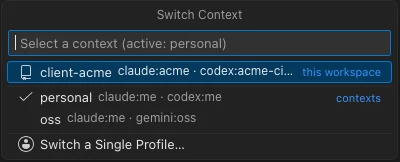
The AI Switcher extension for VS Code and Cursor shows the active account in the status bar: the context name when one matches, such as work, or the profile per tool, such as Claude Code:work. Hover it to see every tool's active profile.
- Exit the running Claude Code session.
- Click the status bar item, or run AISW: Switch Profile from the Command Palette.
- Pick the Claude Code profile in the Quick Pick. The extension runs the switch through the aisw CLI, verifies the affected tool, and reports "Profile switched." or the verification problem it found.
- Open a new integrated terminal, or run
aisw use claude workin the existing one, and startclaude.
Step 4 is not optional. The extension calls aisw as a child process, so it updates the active profile and the live credentials but cannot export CLAUDE_CONFIG_DIR into terminals that are already open. A terminal still holding the old profile's directory will keep starting Claude Code with the old account.
Bind the repository to its Claude Code account
Manual switching depends on remembering. A binding makes the folder declare the account it expects, and both the editor and the terminal check it. In the repository's integrated terminal:
- Create a context that maps Claude Code to the right profile:
aisw context create work --claude work. - Bind the folder:
aisw workspace bind . --context work, or run AISW: Bind Workspace… from the Command Palette, which opens a terminal and runs the same command. In a Git repository the rule is written to.git/info/aisw.json, so it is not committed. - Make a mismatch block the launch instead of only warning:
aisw workspace guard --mode strict. - Open a new integrated terminal so the shell hook's checks are loaded there.
With personal still active, typing claude in that repository is refused before Claude Code starts:
$ claude
Error: workspace guard refused to launch Claude Code.
  Expected context: 'work'
  Current state: 'claude personal, codex none, gemini none, agy none'
  Status: mismatch
  Run 'aisw context use work'.
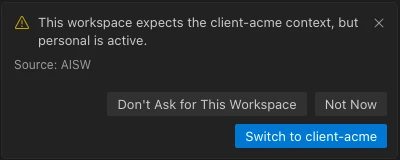
In the editor, the status bar item turns to the warning color and shows the active account against the expected one, for example Claude Code:personal ≠ work. Clicking it runs AISW: Switch to Workspace Context, and a notification offers the same switch once per window. After switching, open a new terminal for the same reason as before.
Bindings can also match a Git remote pattern or set a default; the Claude Code account per repository guide covers those rules.
Where the guard runs, and where it does not
The blocking check is a shell function: the hook defines claude to run aisw workspace check --tool claude before the real binary. It applies only when you type claude in a shell that loaded the hook. Anything that starts Claude Code another way, such as an editor panel, a task, or a shell without the hook, skips it. In those cases the status bar warning is your check, or run aisw workspace status yourself.
The extension also runs only on the machine where VS Code itself runs. In Remote-SSH, container, Codespaces, and web windows the status bar shows a disabled AISW item, and aisw has to be run in the remote host's terminal instead.
If the account still does not change after a new terminal and a relaunch, work through the Claude Code switch troubleshooting checklist. For PowerShell terminals on Windows, see Claude Code accounts on Windows.
See the active Claude Code account in the status bar
Install aisw, add the VS Code or Cursor extension, and bind repositories to the account they expect.